
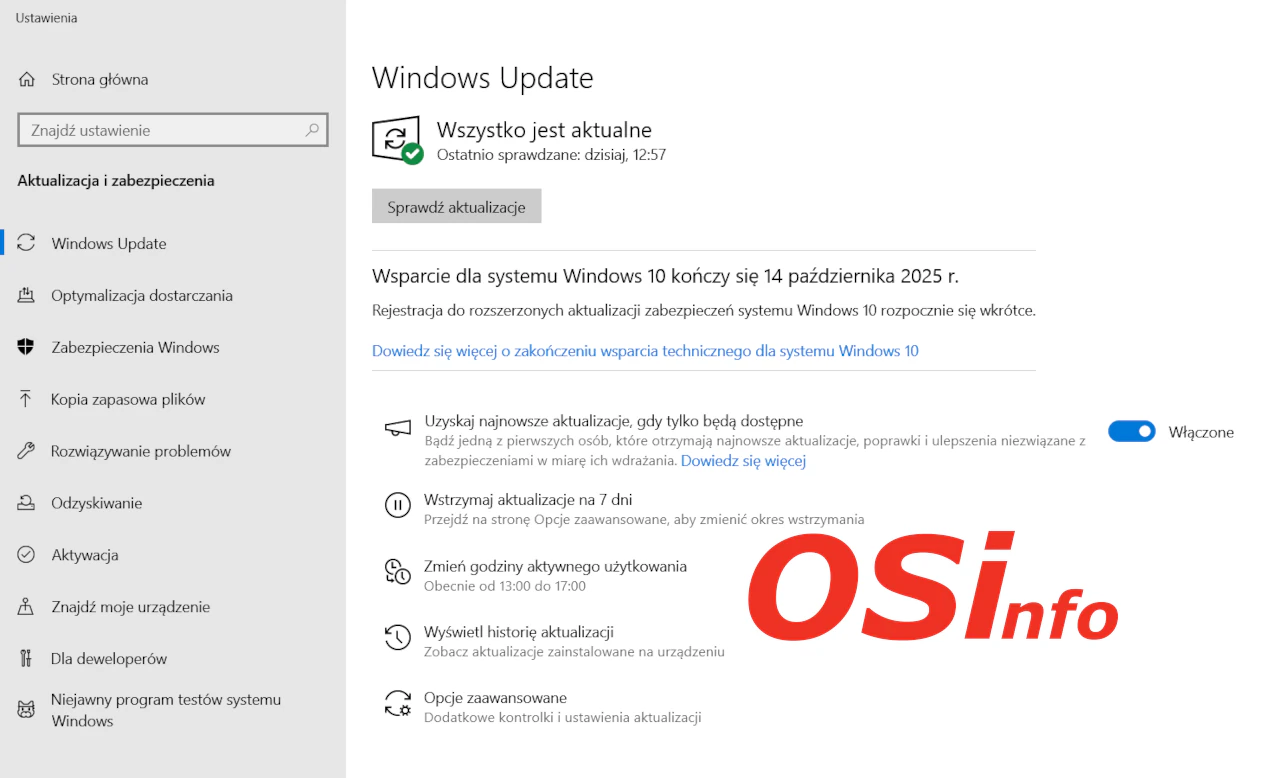
Windows 10 was released on July 29, 2015. Ten years have passed since then. As a result, the operating system should no longer receive technical support. Will that happen?
According to Microsoft’s previous announcements, technical support is scheduled to end on October 14, 2025.
Initially, it was announced that companies would be able to purchase additional technical support. However, this option did not apply to home users.
To everyone’s surprise, it was soon announced that regular consumers would also be eligible for extended support.
The Extended Security Updates (ESU) program for Windows 10 is designed to provide customers with a more secure option for continuing to use Windows 10 computers after October 14, 2025.
Support was to be provided under the following terms:
- A fee of $30
- Redemption of 1,000 Microsoft Rewards points
- Enabling backup to sync settings and folders to the cloud
Users could choose one of the above options to extend support for their Windows 10 computers.
These options remain the current procedure worldwide, except for residents of Europe.
Consumers in the European Economic Area are subject to revised and significantly simpler requirements.
What requirements must be met?
- The device must be running Windows 10 version 22H2 Home, Professional, Pro Education, or Workstation.
- The account used to sign in to the device must be an administrator account and a Microsoft account.
- The devices must have the latest Windows update installed.
In addition, the following conditions must be met:
- The ESU program for consumers cannot be used on commercial devices.
- Devices operating in kiosk mode.
- Devices enrolled in a Mobile Device Management (MDM) solution.
- Devices that already have an ESU license.
Provided they meet the above conditions, consumers in the European Economic Area can register for the ESU program in one of the following ways after signing in with their Microsoft account:
- Users who remain signed in with a Microsoft account on an eligible computer
- The Microsoft account used to sign in to the ESU registration tool will allow you to receive extended security updates on your device until October 13, 2026, provided that you sign in to Windows using the Microsoft account used for registration.
- If you do not continue to sign in to your computer using a Microsoft account, ESU updates for your device will be suspended after a certain period of time, up to 60 days.
- If ESU updates have been suspended because you did not sign in using a Microsoft account, you will need to sign in again to resume receiving updates. - Users with a local account who do not want to remain signed in to an eligible computer using a Microsoft account
- A one-time purchase of $30 USD or the equivalent in local currency, plus applicable taxes.
This allows you to continue using your local account (after making the purchase, you are not required to sign in with a Microsoft account).
- Additional security updates will be available on the device until October 13, 2026.
How do I enable ESU in Windows 10?
If all requirements are met, the option to enable ESU should appear in Settings under System Updates:
Go to Settings > Update & Security > Windows Update.
After selecting Sign up now, you will begin the ESU registration process. If you sign in to Windows using a local account, you will be prompted to sign in with a Microsoft account.
These options may be rolled out in phases and may not become available until the coming weeks.
Once you’ve enrolled in the ESU program, you can use your existing ESU license on up to 10 devices.
For more information about Extended Support Updates in Windows 10, visit the Microsoft website.
Add new comment